> For the complete documentation index, see [llms.txt](https://wiki.thescriptersguild.com/llms.txt). Markdown versions of documentation pages are available by appending `.md` to page URLs; this page is available as [Markdown](https://wiki.thescriptersguild.com/forge/forge-basics-and-ui/saving-assets.md).
# Saving Assets
Saving assets in Forge is an essential part in retaining the progress you've made. From forge you can save a map, prefab or a mode.
Retaining progress through the creation of assets is essential for any creator working within the Forge editor.
## Saving Maps
To save a map, users have two primary options: performing a quicksave or creating a save with a custom note. A quicksave can be performed using **Ctrl+S** or by holding **Y (Hold) → Quicksave**, which adds an entry to the version history labeled "Quicksave." To create a save with a custom description, users must open the start menu, select "Save Map," input a version note (up to 265 characters), and press Confirm.
The Start Menu can be accessed at any time using **Esc**/**Menu**, unless while in the node graph on keyboard, when the start menu can be opened with **F1**.
### File Size Constraints
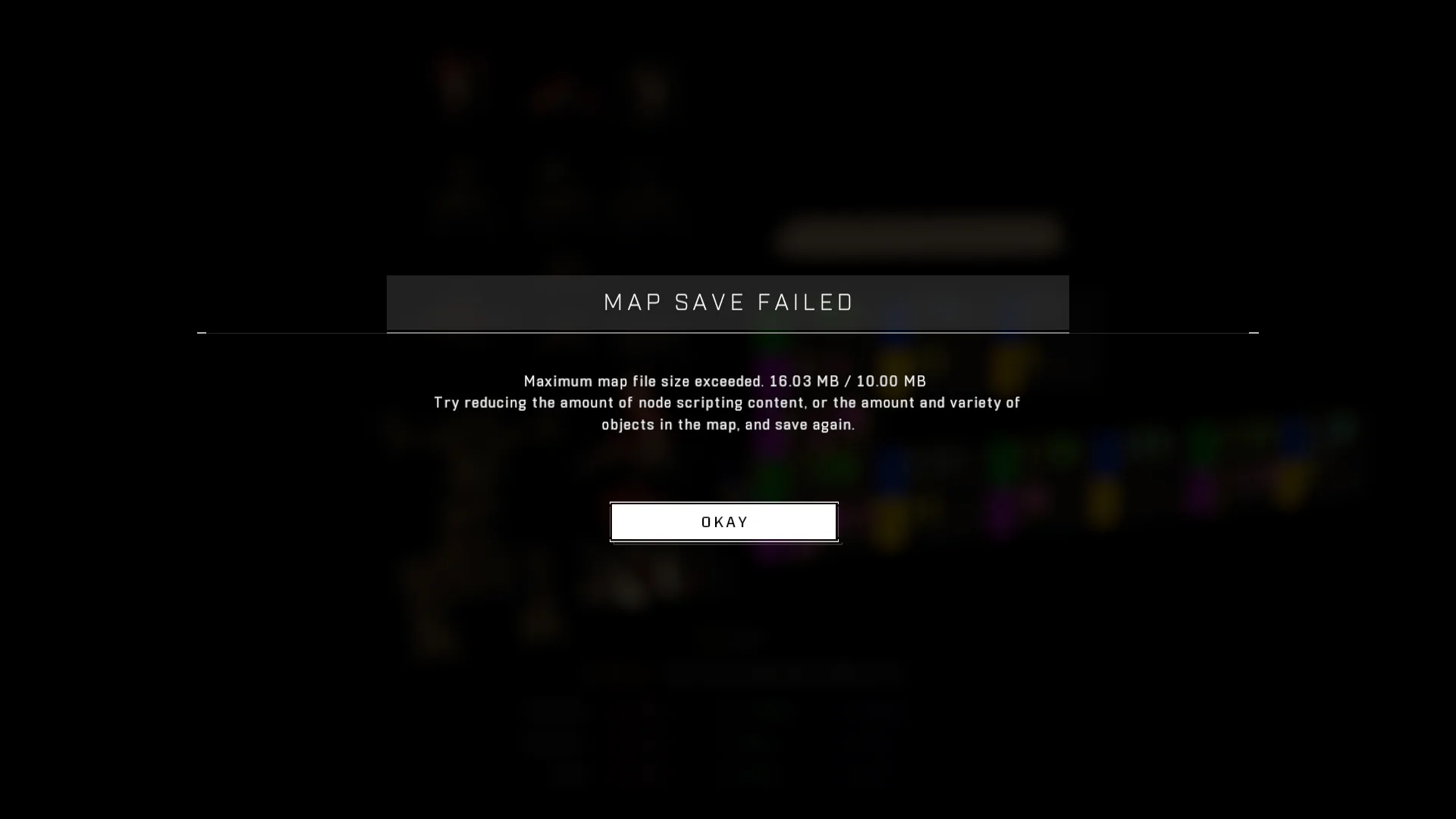
Maps have a maximum file size limit of 10.00 MB. If an attempt is made to save a map that exceeds this limit, a "Maximum file size exceeded" error message will appear. This notification displays the current file size and instructs the player to reduce either the object or scripting content on the map.
## Prefabs and Modes
### Saving Prefabs
To save a prefab, the user must select an existing prefab while in Monitor Mode and use **E (Hold)** or **X (Hold) → Save Prefab**. Like maps, prefabs are limited to a maximum file size of 10.00 MB. If the limit is exceeded, the saving process will not complete, though no error message is communicated to the player.
### Saving Modes
The process for saving modes is similar to that of prefabs with one specific requirement: all objects making up the mode must be dynamic and contain a Mode Brain. When these conditions are met, the "Save Prefab" option changes to "**Save Mode Prefab**."
{% hint style="info" %}
Modes created in Forge are frequently referred to as "Forge Modes" or even "Mode Prefabs."
{% endhint %}
Modes also have a maximum file size limit of 10.00 MB; if this is exceeded, the save will fail without an error notification. When saving particularly large modes, the process may take tens of seconds and can trigger server-side lag that results in multiple identical versions being saved (sometimes upwards of 15). In these instances, the latest version after the surge should be utilized.
***
## Source Data
* Discord thread: [Saving Assets](https://discord.com/channels/220766496635224065/1534024671568334978/1534024671568334978)
#### Contributors
Okom